How to Make a Chipmunks Dance Video From One Group Photo
By Chipmunks Dance AI Team · Chipmunks Dance AI product team
- Photo to video
- Group photos
- Chipmunks dance
- Input checklist
To make a chipmunks dance video from photos in this studio, start with one group image, choose image-to-video, describe a small dance movement, and check the displayed duration and credit cost. The photo guides an original AI interpretation. It does not guarantee an exact copy of a particular routine or perfect facial consistency. The most useful preparation is choosing a photo that already shows the people and body positions your intended scene needs.
Make your chipmunks dance video
Use a clear, well-lit photo you have permission to animate. A group photo helps keep everyone in the same scene.
Describe people, formation, movement and camera. Exact movie choreography, song or identity is not guaranteed.
Seedance 2.0 · 720p · 9:16
Choose a photo to continue.
By creating, you confirm you have permission to use your photo and prompt. Terms
Generation time varies. We show the actual task status after submission.
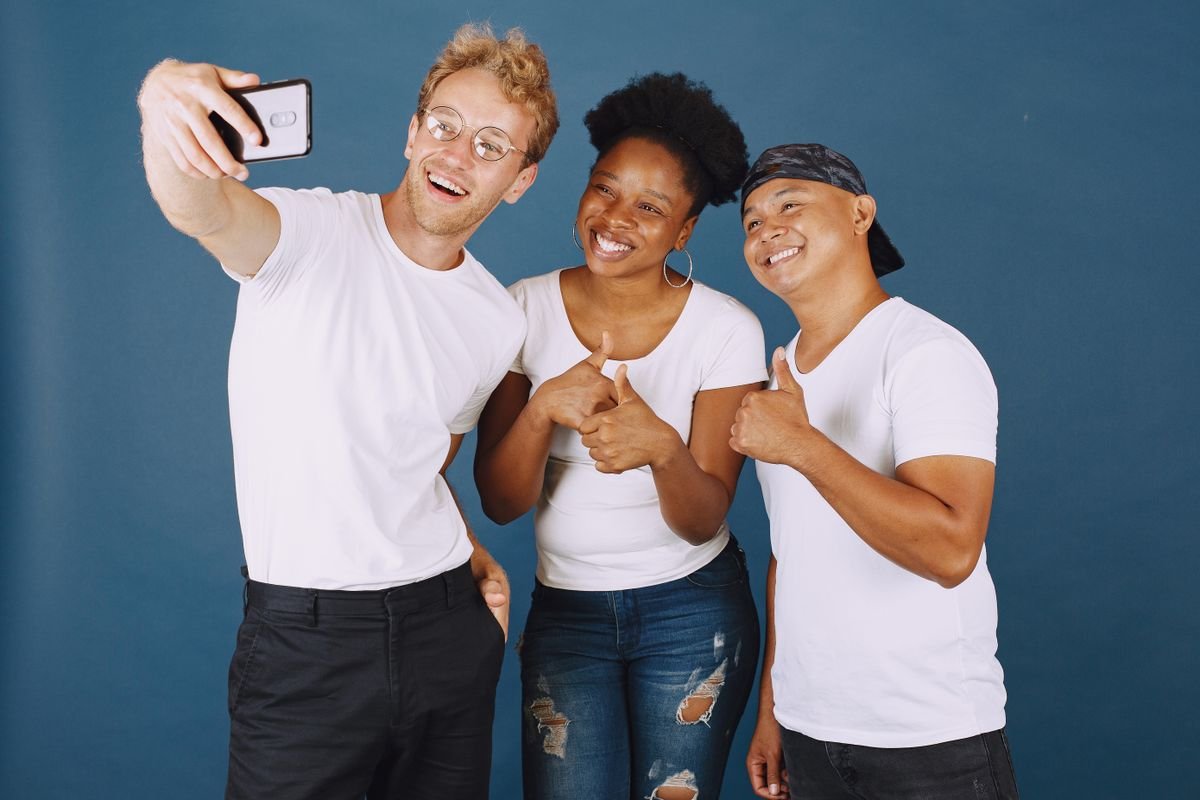
Choose one image that contains the intended group
The upload control accepts one image, not a collection of separate portrait slots. If you want three friends in the scene, a single suitable group photo gives the model information about their arrangement together. Three unrelated selfies do not automatically become a group just because they are selected on your computer. If you prepare a composite in another editor, use images you are entitled to edit and check that the resulting arrangement is coherent before uploading it.
Inspect the image at full size. Faces should not be tiny, blurred, strongly filtered, or hidden by accessories. Look at the hands and feet when they are relevant to the movement you will request. A photograph cropped at the shoulders does not describe the performers’ lower bodies, so a full-body dance requires the model to invent substantial missing information. You may prefer a restrained upper-body movement or a different photo. Choosing a source that matches the goal is more useful than assuming a longer prompt will recover details that are absent.
| Photo issue | Why it matters | A practical change |
|---|---|---|
| Shoulder-only crop | Lower bodies must be invented | Use a wider image or smaller motion |
| Faces overlap | One person is partly hidden | Choose a more separated arrangement |
| Strong blur or filter | Identity cues are unclear | Use a clearer source |
| More than 10 MB | The upload exceeds the limit | Export a supported smaller copy |
Check consent, file format and privacy
Only upload photographs of yourself or other adults who have agreed to the intended use. Permission to keep a group photo is not automatically permission to publish an animated version of everyone in it. Explain whether you plan to share the result publicly, and agree on the kind of scene you want to create. Avoid including bystanders, personal documents, visible addresses, or other private details that are not necessary for the video. Those details can become part of the output or processing input.
The accepted formats are JPG, PNG, and WebP, with a 10 MB maximum per image. Renaming a file extension does not convert an unsupported image into one of those formats; export a new copy from an image editor if needed. Keep the original on your own device. The selected file may be preserved in a local browser draft so that a sign-in interruption does not discard your work. On a shared computer, be mindful that browser storage and downloaded files remain part of your privacy decisions.
Describe movement that fits the source
Write the action in plain visual language. “Small synchronized side steps, gentle shoulder bounces, everyone facing the camera” gives a clearer starting point than “do the viral dance perfectly.” Add the desired arrangement and camera behavior: all three people remain visible, the camera stays steady, and the shot includes enough body area for the action. Keep the first idea to one continuous movement. A short clip has little room for a long sequence of separate instructions.
Use the photo for appearance and the prompt for the intended motion. If you ask the model to replace every outfit, move to an elaborate new location, rotate the camera, and perform a fast formation swap, you are also asking it to reinterpret much of the source. That may be appropriate for a fantasy concept, but it makes fidelity harder to evaluate. When the people are the important part, start with fewer changes. Treat the prompt as guidance, and inspect the result rather than relying on language such as “preserve perfectly.”
Select a duration and inspect the cost before submission
The studio exposes the available duration choices and the credits required for the selected option. Read that figure after changing a setting, not just the number that appeared when you first opened the page. The current output specification is a vertical 9:16 video at 720p. A purchase of credits does not change the model’s available resolution or add controls that the studio does not show. Use the pricing page for current plan details, and check that a chosen pack covers the actual request.
If your balance is enough, the generation action can proceed directly. If it is insufficient, the prepare button opens a 15-second wait and then shows purchase options. No model result is created by that countdown. A small credit pack may cover a shorter request without covering the default length; the payment view should make that difference visible. If purchasing is unavailable, keep your draft and wait for the service to open rather than assuming the displayed prices are already live.
- Select Image to video.
- Choose one JPG, PNG or WebP up to 10 MB.
- Describe one visible dance action.
- Choose the duration and read its credit cost.
- Submit once and follow the task state.
- Review and download the completed MP4.
Wait for the existing task and evaluate the result
After submission, the page reports the actual task state. Keep that task instead of clicking repeatedly to create replacements. If your connection drops, check the original task before trying another generation. The same request can still be in progress even when your browser did not receive a response. A server-confirmed failure is different from a slow request or a temporary inability to load the status. Use the retry control for the problem shown, and retain the task ID if you contact support.
When a result becomes available, watch it once for the overall idea and again for details. Check whether every face is recognizable enough for your intended use, whether bodies overlap unexpectedly, and whether hands, feet, or clothing change in distracting ways. Look at the first and last frames as well as the middle. If the video misses the intended action, decide whether the source image, movement description, or camera request is the likely obstacle. A completed file is not a guarantee of a satisfactory creative result.
Download, add music separately and keep access private
Download the finished MP4 while it is available. Generated results have a stated retention period, and a private purchase link is an access method rather than permanent storage for the file. Keep a local copy if you want to retain the video longer. Having spent the remaining credits on that task does not remove your right to access a result that was legitimately generated for you. You should not need another payment simply to view or download that same result.
Use another editor or the destination platform for captions, trimming, muting, or adding music you are allowed to use. Those editing controls are not part of this studio. The original song from a social post is not automatically included or licensed with an AI video. Share the finished file, not the private purchase link, and describe the clip as AI-generated. If a render fails, returned credits go back to the original grant; a request for a cash refund follows the separate refund policy and review process.
Frequently asked questions
Can I upload three separate portraits?
The current studio accepts one reference image. Use one suitable group photo or prepare a permitted composition elsewhere first. It does not include a three-portrait merge workflow.
Will my friends look exactly the same in every frame?
That is not guaranteed. Clear faces, visible bodies, simple movement and restrained camera instructions can make the request easier to evaluate, but AI output still needs a careful review before sharing.
What happens if my photo is rejected?
Read the specific error. Convert an unsupported format, reduce a file that exceeds 10 MB, or choose another suitable image. Content-safety rejection should not be bypassed by disguising the same input.
Does signing in lose my selected photo?
The studio preserves the selected photo and settings in a local browser draft where storage is available. Keep the source file yourself, particularly on shared devices or browsers that disable local storage.
Can I use the generated clip after my balance reaches zero?
Yes, a result generated with a valid credit debit remains accessible within its retention period. Access depends on that task’s ownership and entitlement, not on having a positive balance afterward.
Give your group a dance of its own
Create my dance video